
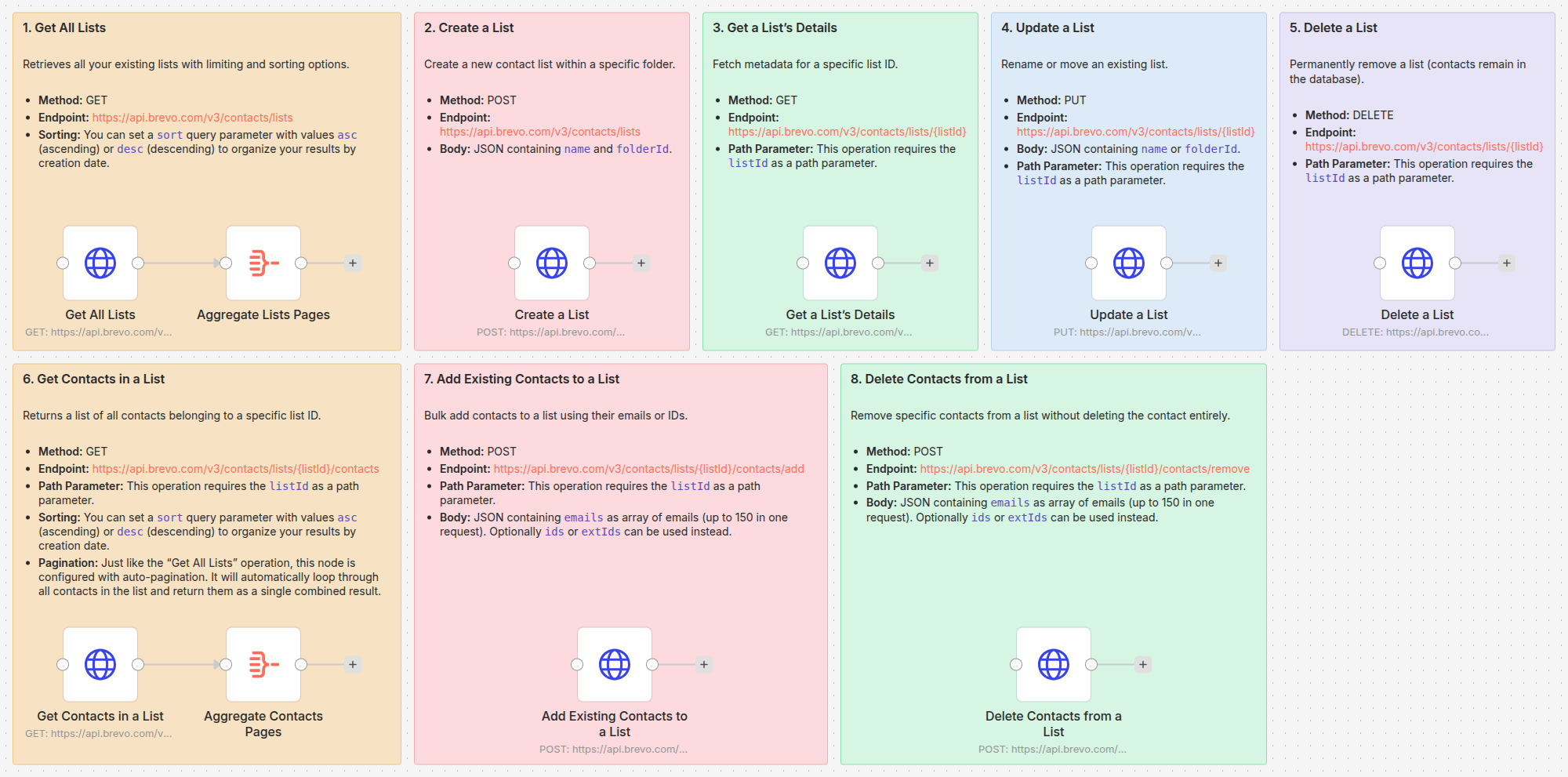
While n8n has a native Brevo (formerly Sendinblue) node, it often lacks deep “List Management” capabilities. To build truly dynamic marketing automations, you need to step beyond the built-in nodes and use the Brevo API.
In this first part of our Brevo series, we provide a “Master Template” containing every list-related API operation you’ll ever need.
Setting Up Authentication
To use these API nodes, you first need to obtain your API Key from your Brevo Settings page under SMTP & API. Once you have your key, you can authenticate in n8n using one of the two following methods:
Option A: Using Native n8n Brevo Credentials
If you already have a Brevo credential set up in n8n, you can reuse it for these custom HTTP requests:
- In the HTTP Request node, change Authentication to
Predefined Credential Type. - Select
Brevoas Credential Type. - Create new credential specifying your API Key.
n8n will automatically handle the headers using the API Key stored in your credentials.
Option B: Using Custom Header Auth
Alternatively, you can manually set the header for a quick setup:
- Set Authentication to
Generic Credential Type. - Set Generic Auth Type to
Header Auth. - Create new credential with the following parameters:
- Name:
api-key - Value:
YOUR_BREVO_API_KEY(The key you retrieved from your Brevo Settings page).
- Name:
The List Operations
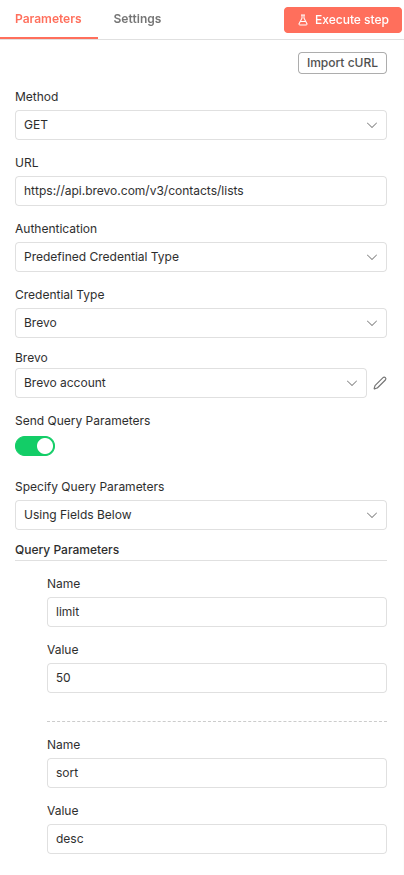
1. Get All Lists
Retrieves all your existing lists.
- Method: GET
- Endpoint:
https://api.brevo.com/v3/contacts/lists - Sorting: You can set a
sortquery parameter with valuesasc(ascending) ordesc(descending) to organize your results by creation date.
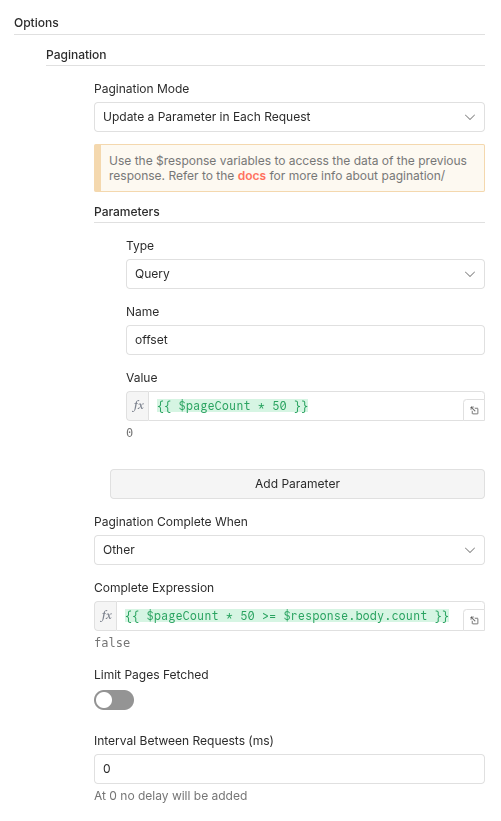
Handling Large Data with Pagination
One of the most powerful features of the HTTP Request node is its ability to handle pagination. In the “Get All Lists” node, we have enabled the pagination settings to ensure that even if you have hundreds of lists, n8n will fetch them all in one go.
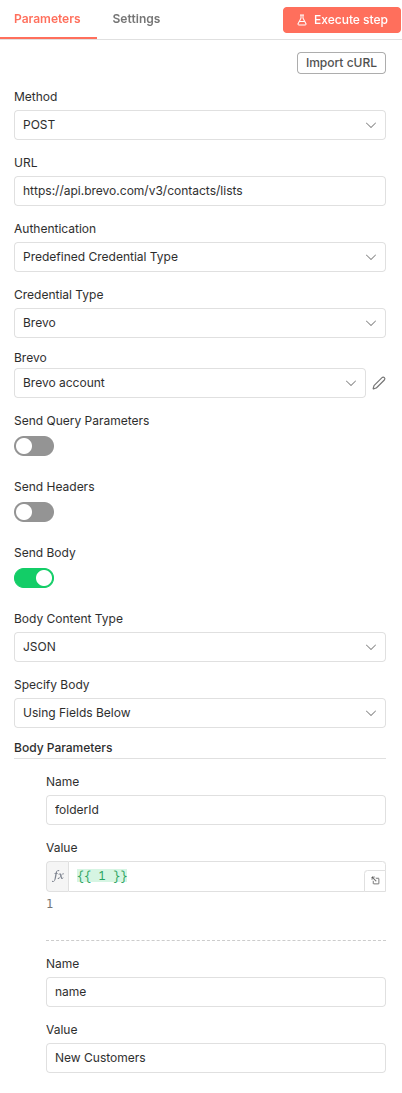
2. Create a List
Create a new contact list within a specific folder.
- Method: POST
- Endpoint:
https://api.brevo.com/v3/contacts/lists - Body: JSON containing
nameandfolderId.
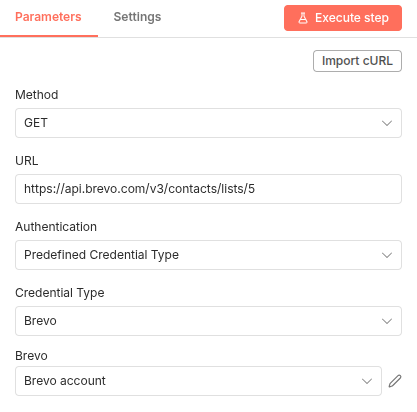
3. Get a List’s Details
Fetch metadata for a specific list ID.
- Method: GET
- Endpoint:
https://api.brevo.com/v3/contacts/lists/{listId} - Path Parameter: This operation requires the
listIdas a path parameter.
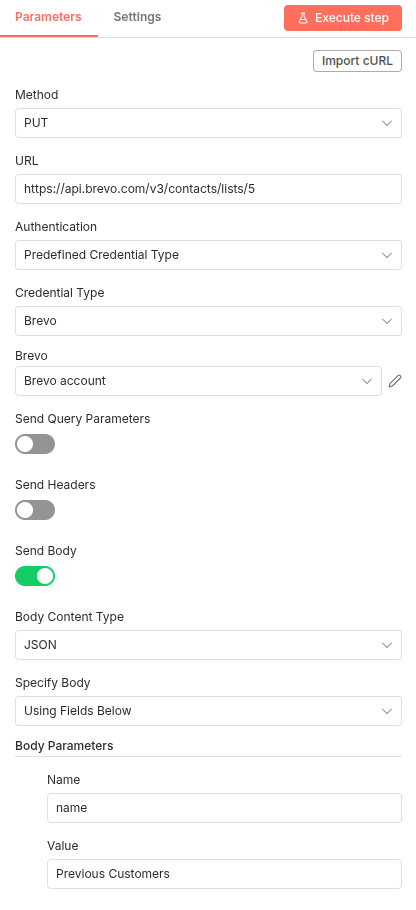
4. Update a List
Rename or move an existing list.
- Method: PUT
- Endpoint:
https://api.brevo.com/v3/contacts/lists/{listId} - Path Parameter: This operation requires the
listIdas a path parameter. - Body: JSON containing
nameorfolderId.
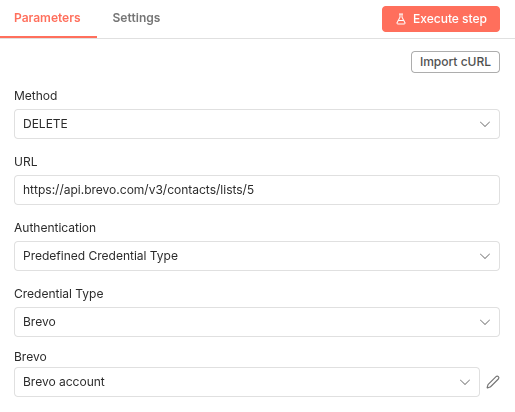
5. Delete a List
Permanently remove a list (contacts remain in the database).
- Method: DELETE
- Endpoint:
https://api.brevo.com/v3/contacts/lists/{listId} - Path Parameter: This operation requires the
listIdas a path parameter.
Contact & List Membership
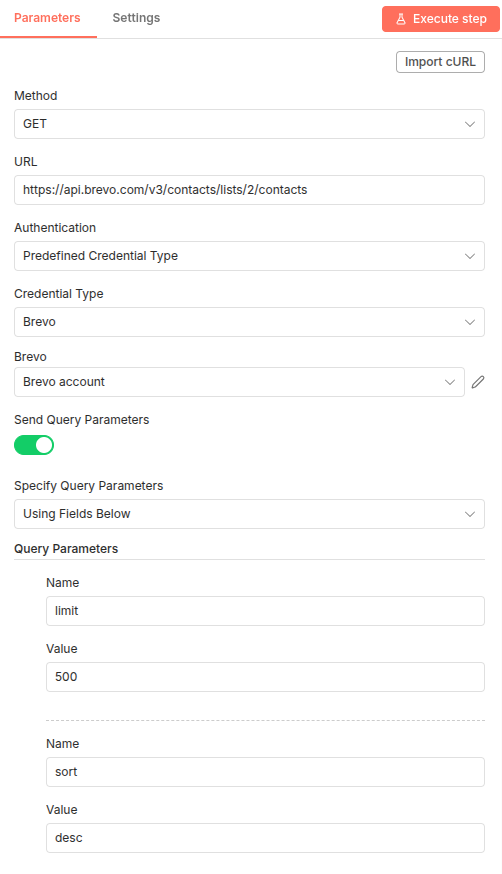
6. Get Contacts in a List
Returns a list of all contacts belonging to a specific list ID.
- Method: GET
- Endpoint:
https://api.brevo.com/v3/contacts/lists/{listId}/contacts - Path Parameter: This operation requires the
listIdas a path parameter. - Sorting: You can set a
sortquery parameter with valuesasc(ascending) ordesc(descending) to organize your results by creation date. - Pagination: Just like the “Get All Lists” operation, this node is configured with auto-pagination. It will automatically loop through all contacts in the list and return them as a single combined result.
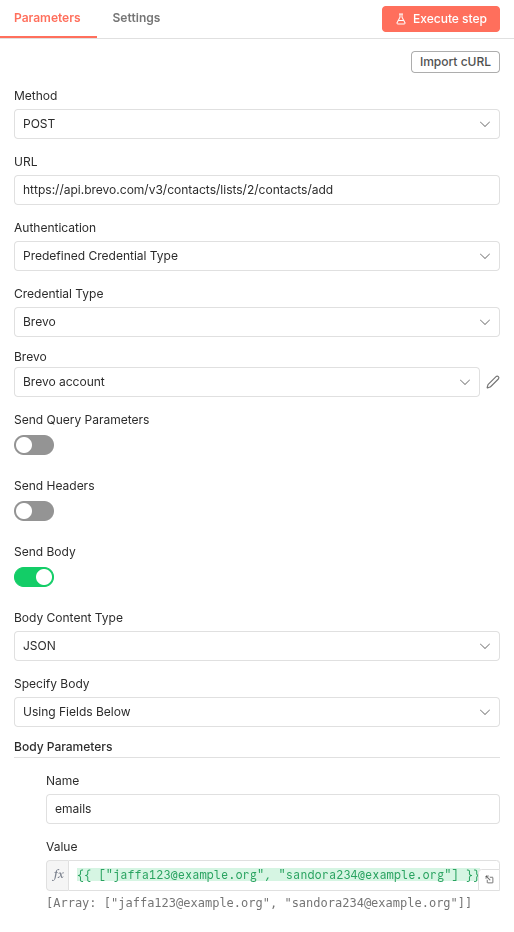
7. Add Existing Contacts to a List
Bulk add contacts to a list using their emails or IDs.
- Method: POST
- Endpoint:
https://api.brevo.com/v3/contacts/lists/{listId}/contacts/add - Path Parameter: This operation requires the
listIdas a path parameter. - Body: JSON containing
emailsas array of emails (up to 150 in one request). OptionallyidsorextIdscan be used instead.
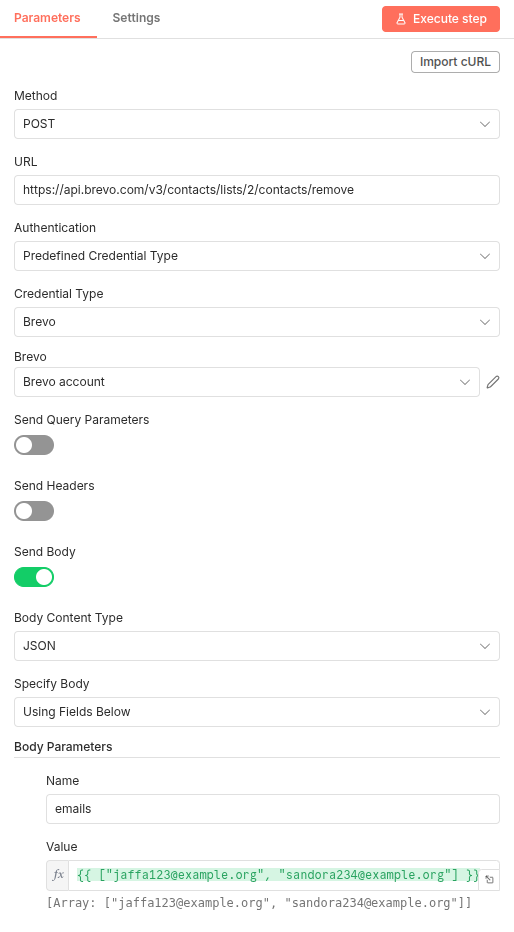
8. Delete Contacts from a List
Remove specific contacts from a list without deleting the contact entirely.
- Method: POST
- Endpoint:
https://api.brevo.com/v3/contacts/lists/{listId}/contacts/remove - Path Parameter: This operation requires the
listIdas a path parameter. - Body: JSON containing
emailsas array of emails (up to 150 in one request). OptionallyidsorextIdscan be used instead.
Download the Template
You can copy the entire workflow from our GitHub repository and paste it directly into your n8n canvas.
Alternatively you can check this template on n8n.io library.
Ready to start automating your email marketing? Create your free account on Brevo today and start building better relationships with your customers.