In our previous guide on Brevo List Management, we covered how to programmatically manage contact lists and subscriber memberships using direct API calls in n8n. But as your email marketing setup grows, keeping dozens or even hundreds of lists organized becomes essential.
That is where Folders come in. Brevo uses folders as the top-level structural container to group contact lists by brand, client, department, or campaign stage. However, the native Brevo (formerly Sendinblue) node in n8n focuses primarily on contacts and transactional emails, leaving out folder operations entirely.
In this second installment of our Brevo API series, we provide a production-ready “Brevo Folder Management Master Template” featuring every folder endpoint you need to build organized, automated marketing workflows.
Setting Up Authentication
To use these API nodes, you first need to obtain your API Key from your Brevo dashboard under Settings > SMTP & API > API Keys. Once you have your key, you can authenticate in n8n using either of the following two methods:
Option A: Using Native n8n Brevo Credentials (Recommended)
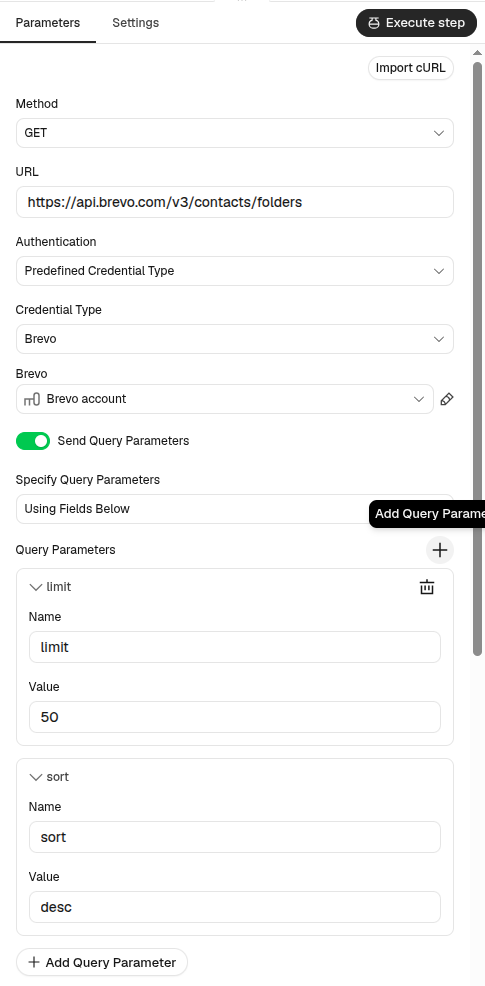
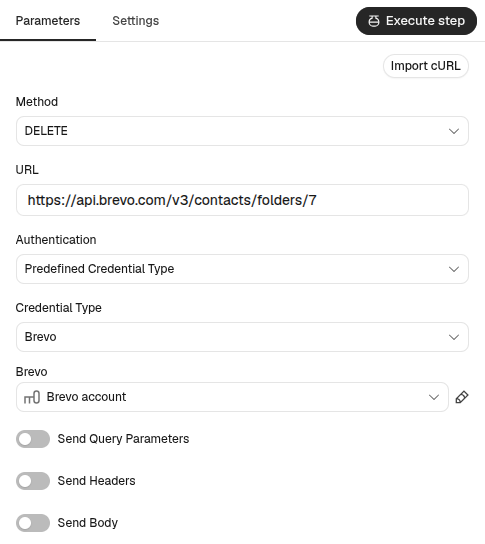
If you already have Brevo credentials set up in your n8n instance, you can reuse them directly in custom HTTP Request nodes:
- In the HTTP Request node, set Authentication to
Predefined Credential Type. - Select
Brevoas the Credential Type. - Pick your existing credential or create a new one with your API Key.
n8n automatically adds the required api-key header to every outgoing request.
Option B: Using Custom Header Auth
Alternatively, you can configure manual header authentication:
- In the HTTP Request node, set Authentication to
Generic Credential Type. - Set Generic Auth Type to
Header Auth. - Create a new credential with the following values:
- Name:
api-key - Value:
YOUR_BREVO_API_KEY
- Name:
The Folder Operations
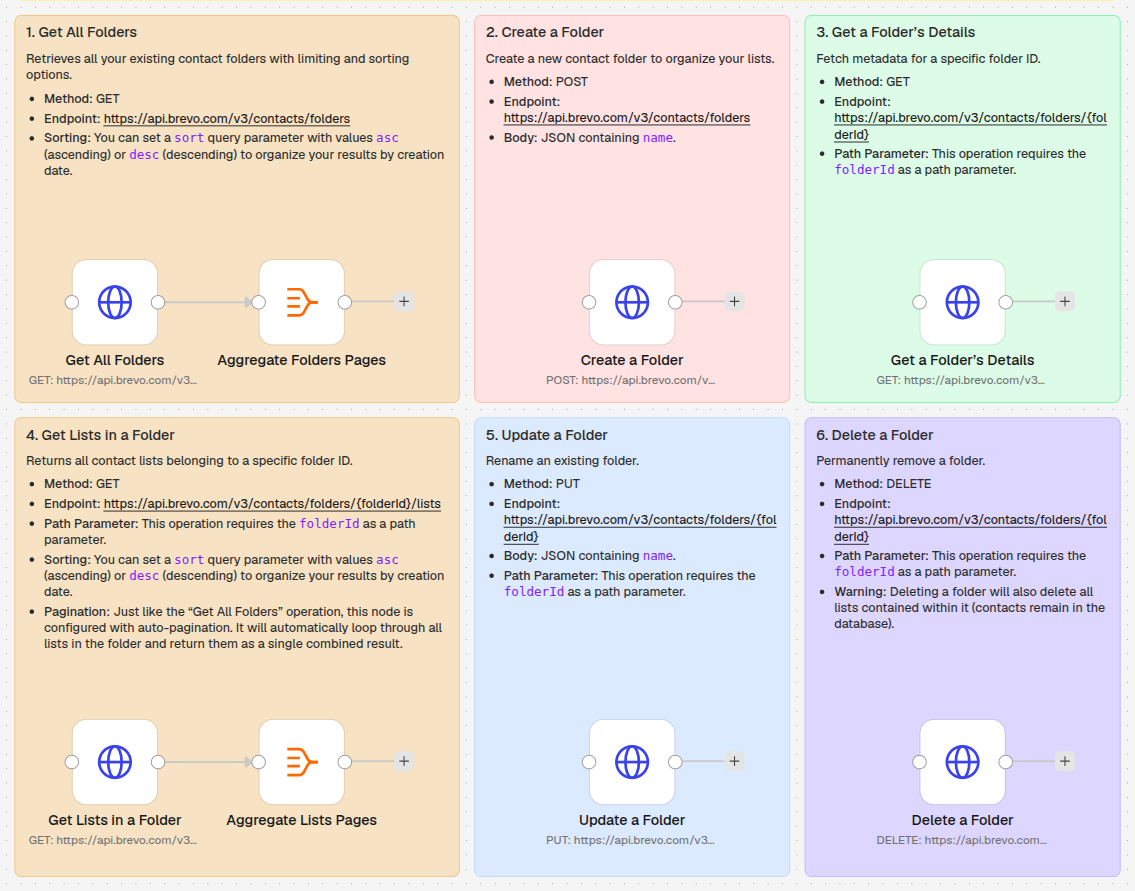
Our template is organized into a clean 3×2 visual canvas layout, grouping collection queries with automatic pagination alongside standard CRUD operations.
1. Get All Folders
Retrieves all contact folders existing in your Brevo account.
- Method: GET
- Endpoint:
https://api.brevo.com/v3/contacts/folders - Sorting: You can configure the
sortquery parameter todesc(newest first) orasc(oldest first).
Handling Large Data with Pagination
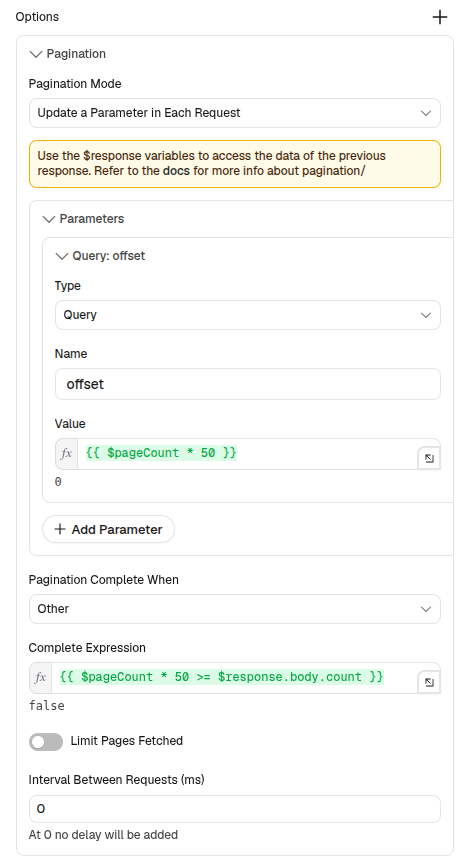
By default, Brevo limits folder list responses to a maximum of 50 items per request. To ensure you fetch every folder regardless of how many you have, this node is configured with n8n’s built-in auto-pagination:
- Pagination Mode:
Update a parameter in each request - Type:
Query - Parameter:
offsetwith value={{ $pageCount * 50 }} - Complete Condition:
={{ $pageCount * 50 >= $response.body.count }}
An attached Aggregate Folders Pages node combines all paginated batches into a single unified list of folders ready for downstream processing.
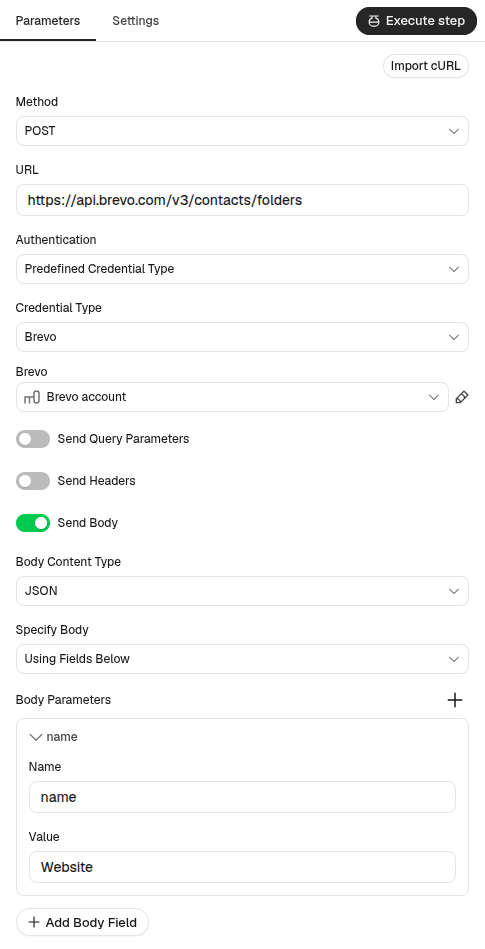
2. Create a Folder
Creates a new top-level folder to categorize future contact lists.
- Method: POST
- Endpoint:
https://api.brevo.com/v3/contacts/folders - Body: JSON containing
name.
Upon successful execution, Brevo returns the newly generated folder ID (e.g. {"id": 55}).
3. Get a Folder’s Details
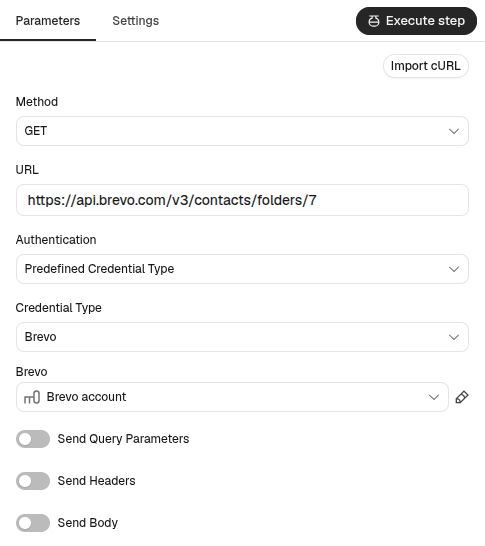
Fetches metadata for a specific folder by passing its ID in the URL path.
- Method: GET
- Endpoint:
https://api.brevo.com/v3/contacts/folders/{folderId} - Path Parameter: Replace
{folderId}with your target folder ID (e.g.,/7).
The response includes the folder name along with high-level statistics such as unique subscriber counts.
4. Get Lists in a Folder
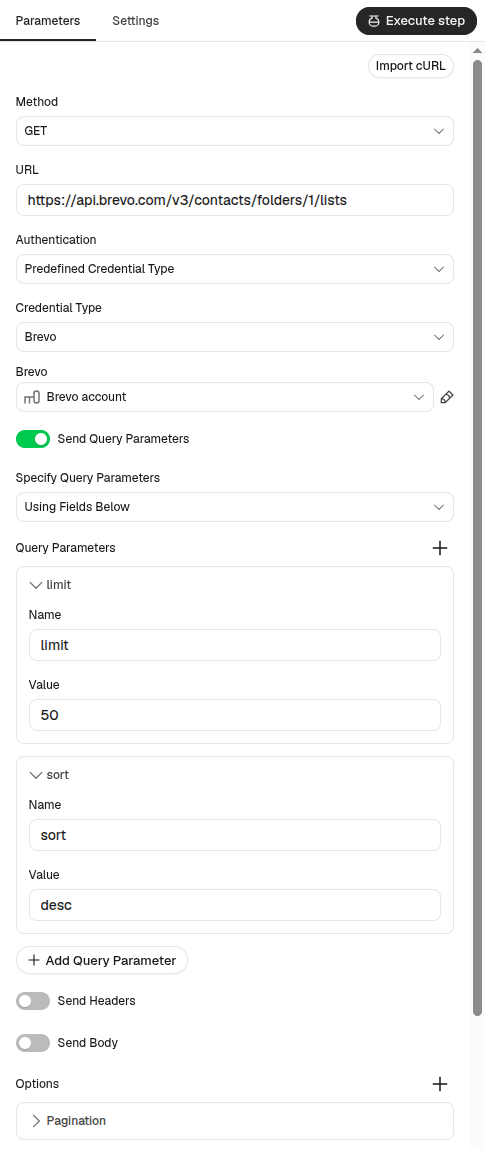
Fetches all contact lists nested within a specific folder.
- Method: GET
- Endpoint:
https://api.brevo.com/v3/contacts/folders/{folderId}/lists - Path Parameter: Replace
{folderId}with the parent folder ID. - Sorting: Supports sorting lists via
sort(asc/desc). - Pagination: Configured with auto-pagination and an aggregate node (
Aggregate Lists Pages), retrieving all nested lists across multiple pages seamlessly.
This is especially helpful for dynamically iterating over every list belonging to a specific client or campaign category.
5. Update a Folder
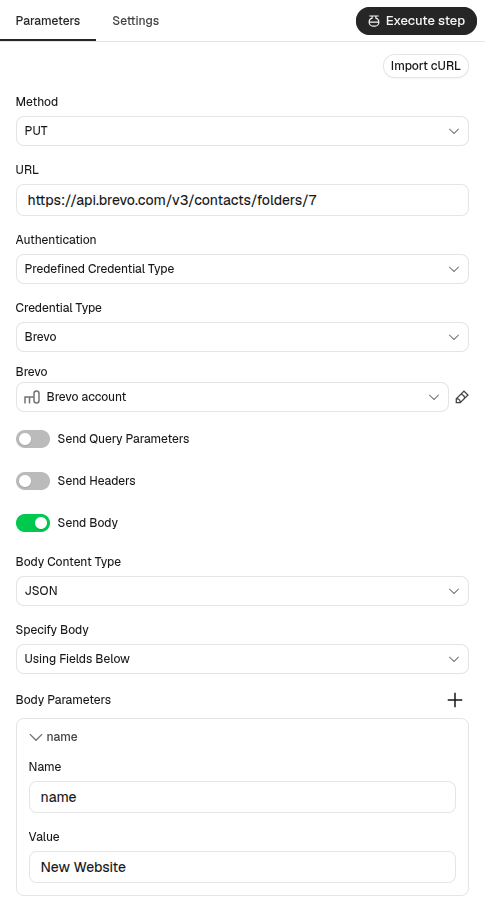
Renames an existing contact folder.
- Method: PUT
- Endpoint:
https://api.brevo.com/v3/contacts/folders/{folderId} - Path Parameter: The unique ID of the folder to rename.
- Body: JSON payload with the updated
name(e.g.{"name": "New Website"}).
Returns a 204 No Content status confirming the change.
6. Delete a Folder
Permanently removes a contact folder.
- Method: DELETE
- Endpoint:
https://api.brevo.com/v3/contacts/folders/{folderId} - Path Parameter: The unique ID of the folder to remove.
WarningImportant Deletion Behavior: Deleting a folder in Brevo also permanently deletes all contact lists contained within it. However, your contacts themselves are not deleted — they remain safely stored in your Brevo contact database.
Download the Template
You can copy the complete workflow directly from our GitHub repository and paste it into your n8n canvas using Ctrl+V (or Cmd+V).
Looking to automate your email marketing end-to-end? Sign up for a free Brevo account today and explore our companion guide on Brevo List Management to master subscriber memberships and lists.